Home/Vidu AI
VIDU AI VIDEO GENERATOR

Vidu AI Video Generator: Create Videos from Text and Images

Turn ideas, prompts, and still images into short videos with Vidu AI. Create cinematic scenes, anime clips, product visuals, social content, and ad concepts with a browser-based workflow designed for fast creative iteration.

Text to VideoImage to VideoNative AudioAnime & Cinematic

Create with Vidu AI

Use the Vidu AI workspace above to start from a written prompt or an image. Choose the generation options that fit your project, describe the motion and visual direction you want, and create a video without building a traditional editing timeline first.

Vidu AI is useful when you want to move from an idea to a visual draft quickly. A text prompt can define a new scene from scratch, while an uploaded image can provide a stronger visual anchor for a character, product, illustration, or composition. Instead of manually animating every element, you give Vidu AI the creative direction and refine the result through prompts and settings.

What Is Vidu AI?

Vidu AI is an AI video generation platform designed to create videos from text, images, and visual references. It combines prompt-based generation with workflows for turning written ideas or existing artwork into moving scenes. For creators who want a faster way to explore video concepts, Vidu AI can reduce the amount of manual setup needed before the first usable draft.

The broader Vidu AI workflow supports text to video, image to video, and reference-guided video creation. On this page, the generator uses the same Vidu Q3 workspace and controls already available on our Vidu Q3 tool page, so users can work with a familiar interface instead of learning a separate tool.

Vidu AI is especially practical for short-form creative work. You can use it to test a scene before production, animate an illustration, create a product shot, explore an anime sequence, prepare social media visuals, or turn a simple idea into a moving concept.

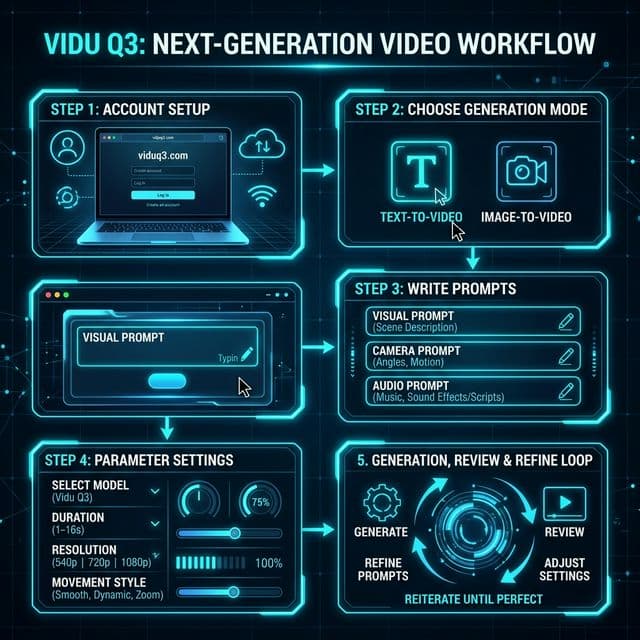
How to Use the Vidu AI Video Generator

1. Start with a Prompt or Image

Begin with the input that gives Vidu AI the clearest direction. For text to video, describe the subject, action, environment, camera behavior, lighting, and style. For image to video, upload a source image and focus the prompt on what should move, how the camera should move, and what should remain visually stable. A simple Vidu AI prompt structure is: Subject + Action + Environment + Camera + Lighting + Style + Audio Clear visual instructions usually work better than a paragraph filled with unrelated adjectives.

2. Choose Your Video Settings

Use the same generation controls as the Vidu Q3 workspace. Select the available model and adjust settings such as duration, aspect ratio, movement, output quality, and audio when those options are available for the selected workflow. For social media, a vertical format is often the most practical choice. For cinematic scenes, ads, product videos, and YouTube content, a landscape format can give Vidu AI more room for composition and camera movement.

3. Generate and Review

Start the generation and review the Vidu AI result as a complete shot. Look at subject consistency, motion, camera direction, framing, lighting, and audio together rather than judging only a single frame. If the result is close but not correct, refine one or two instructions instead of rewriting the entire prompt. Vidu AI is easier to iterate with when each new generation has a clear purpose.

4. Refine and Download

Once the output matches your idea, download the video and continue editing if your project needs captions, branding, longer sequencing, color work, or additional sound design. Vidu AI works well as the generation stage of a larger production workflow.

Vidu AI Text to Video

Vidu AI text to video lets you create a video from a written description without uploading a starting image. This workflow is useful when the visual concept exists in your head but you do not yet have artwork, footage, or a reference frame.

For better results, describe what the viewer should actually see. Instead of writing “make an amazing futuristic video,” tell Vidu AI who or what is in the frame, what is happening, where the scene takes place, how the camera moves, and what the lighting looks like.

Vidu AI Text to Video Prompt Example

A silver sports car drives through a rain-soaked downtown street at night, neon reflections across the road, low tracking camera beside the car, soft mist, cinematic lighting, realistic commercial style, distant traffic and rain ambience.

This gives Vidu AI clear information about subject, movement, environment, camera, lighting, style, and sound. Text to video works well for concept scenes, ad ideas, storyboards, mood tests, cinematic shots, and social content where you want to explore several directions quickly.

Create Text to Video

Vidu AI Image to Video

Vidu AI image to video starts from an existing visual. Upload a photo, illustration, anime character, concept frame, product image, or other supported image, then describe how the scene should move.

The image gives Vidu AI a stronger starting point for composition and appearance. Your prompt can focus less on re-describing the image and more on motion. Explain what the subject does, which background elements move, how strong the movement should feel, and whether the camera pushes in, pulls back, pans, tilts, tracks, or stays mostly static.

A product image can become a slow advertising shot with controlled camera movement and changing reflections. An anime illustration can become a short character moment with hair movement, fabric motion, and a gentle camera push. A landscape can gain moving clouds, fog, water, or vegetation.

Vidu AI image to video is a strong choice when preserving the source look matters more than inventing a completely new scene.

Use a visual anchor when the character design, product composition, or illustration style needs to remain recognizable while motion is added.

Explore Image to Video

Reference-Based Video Creation with Vidu AI

Vidu AI also supports reference-oriented workflows for projects that need stronger continuity across characters, objects, scenes, or visual styles. References can communicate visual details that are difficult to reproduce consistently with text alone.

This can help with recurring characters, branded products, campaign visuals, story-driven sequences, and projects where the same identity needs to carry across more than one shot. Reference-based creation does not guarantee perfect continuity, so every Vidu AI output should still be reviewed before final use.

When consistency matters, use clear references, avoid contradictory instructions, and keep the role of each reference easy to understand.

Why Creators Use Vidu AI

Text and Image Workflows

Some projects begin with a sentence. Others begin with artwork or a product image. Vidu AI supports both approaches, making it easier to choose the input that fits the stage of your project.

Native Audio Capabilities

Current Vidu Q3 workflows can create short clips with native audio capabilities, including dialogue, sound effects, music, or ambience depending on the selected mode. This lets Vidu AI users think about picture and sound together instead of treating audio only as a post-production step.

Flexible Visual Styles

Vidu AI can be used for realistic scenes, cinematic concepts, anime and illustration-based motion, product visuals, ads, and social media content. Results still depend on the source material, prompt, and settings, but the same workflow can support several creative directions.

Fast Creative Iteration

AI video rarely comes down to one perfect prompt. Vidu AI is most useful as an iterative workflow: create a first version, identify the main problem, adjust the prompt, and generate again with one specific improvement in mind.

Vidu AI for Anime and Illustration

Vidu AI is useful for animating anime artwork, manga-inspired visuals, concept art, and stylized character illustrations. Starting with an image can help preserve the original design language while the prompt focuses on movement, expression, atmosphere, and camera direction.

For anime work, avoid asking every part of the frame to move at once. Small movements often create a cleaner result: hair shifting in the wind, a character turning toward the camera, fabric moving, falling petals, subtle lighting changes, or a slow camera push.

Vidu AI can also help artists preview how a still design might feel in motion before committing to a more labor-intensive animation workflow.

Create Anime Videos

Vidu AI for Product Videos and Ads

Product images are another practical starting point for Vidu AI. A clean product shot can become a short reveal, rotating presentation, lifestyle scene, or cinematic product concept without arranging a physical shoot for every idea.

Marketers can use Vidu AI to test hooks, camera directions, backgrounds, and ad concepts before deciding which creative direction deserves more production resources. Ecommerce teams can animate existing product visuals for campaign drafts, while agencies can use generated shots during concept development and client presentations.

For stronger results, keep the product clearly visible and avoid prompts that introduce too many unrelated objects.

Vidu AI for Social Media

Vidu AI fits short-form workflows for TikTok, Instagram Reels, YouTube Shorts, and other social platforms. Short clips can be used as hooks, transitions, B-roll, mood shots, character moments, product reveals, or parts of a larger edited sequence.

Choose the target aspect ratio before generation when possible. A shot composed for vertical viewing will usually work better than generating a wide scene and cropping important content later.

Creators can also generate several Vidu AI variations around the same idea, compare which opening shot is strongest, and continue editing the best result with captions, voiceover, music, branding, or additional clips.

Tips for Better Vidu AI Results

Be Specific About Motion

Tell Vidu AI what moves and how it moves. “The camera slowly tracks backward as the runner approaches” gives clearer direction than “dynamic movement.”

Give the Camera One Clear Job

Push in, pull back, pan, tilt, track, orbit, handheld, or static are easier to interpret when a shot has one dominant camera idea.

Describe Sound Intentionally

When audio is enabled, include useful sound direction such as rain ambience, footsteps, room tone, dialogue, traffic, ocean waves, or subtle background music. This helps Vidu AI understand the complete moment you want to create.

Use an Image When Appearance Matters

If a specific character, product, composition, or illustration is important, image to video gives Vidu AI a stronger visual anchor than text alone.

Change One Thing at a Time

When refining a generation, isolate the problem. If the motion is too strong, reduce the motion instruction. If framing is wrong, adjust camera direction. If the scene feels crowded, simplify the environment. This makes Vidu AI iteration easier to evaluate.

For a deeper workflow, see the Vidu Q3 Prompt Guide.

Who Is Vidu AI For?

Content Creators

Content creators can use Vidu AI to make social clips, hooks, B-roll, visual experiments, and short story moments.

Artists and Illustrators

Artists and illustrators can use Vidu AI to animate still artwork and test how characters, environments, and compositions behave in motion.

Marketing Teams

Marketing teams can use Vidu AI for ad concepts, campaign drafts, product visuals, and creative testing.

Filmmakers and Video Teams

Filmmakers and video teams can use Vidu AI to create previsualization shots, storyboard alternatives, mood scenes, and early camera tests before production.

Small Businesses

Small businesses can explore video ideas from existing product images without starting every concept with a new shoot.

The common benefit is speed: Vidu AI helps turn an idea or source image into something you can watch, evaluate, and refine.

Frequently Asked Questions About Vidu AI

What is Vidu AI?+

Vidu AI is an AI video generation platform for creating videos from text prompts, images, and visual references. It can be used for cinematic scenes, anime clips, social content, product videos, ads, and creative concept work.

Is Vidu AI an AI video generator?+

Yes. Vidu AI is designed for generative video workflows. Depending on the available mode, you can start from text, an image, or references and guide the video with prompts and generation settings.

Can Vidu AI turn text into video?+

Yes. Vidu AI text to video lets you describe a scene in natural language and generate a short video from that prompt. Adding subject, action, camera movement, lighting, style, and sound direction gives the model clearer instructions.

Can Vidu AI animate an image?+

Yes. Vidu AI image to video can turn supported still images into moving clips. Upload the image, then describe the subject movement, camera motion, atmosphere, and audio you want.

Does Vidu AI support reference images?+

Vidu AI includes reference-based workflows designed to help guide characters, objects, scenes, and visual consistency. Availability and input options can vary by workflow.

Can Vidu AI generate audio with video?+

Current Vidu Q3 capabilities include native audio generation for short video workflows, with support for elements such as dialogue, sound effects, music, or ambience depending on the selected mode and settings.

How long can Vidu AI videos be?+

Current Vidu Q3 generation supports clips up to 16 seconds per generation. Longer projects can be built by generating multiple shots and combining them in a video editor.

Can I use Vidu AI for anime videos?+

Yes. Vidu AI can be used for anime-style text to video and image to video workflows. Image input is especially useful when you want to animate an existing character design or illustration.

Can I use Vidu AI for product ads?+

Vidu AI can help create product reveals, ad concepts, social creatives, and campaign drafts from prompts or product images. Review every output for brand accuracy before commercial use.

Is Vidu AI free to try on this site?+

Free starter access may be available through the Vidu Q3 workspace on this site. Current credit requirements and paid options are shown in the product interface and pricing page.

Is this the official Vidu AI website?+

No. This website is an independent service and is not affiliated with, endorsed by, or operated by the original Vidu model provider. Product names and trademarks belong to their respective owners.

Create Your Next Video with Vidu AI

Start with a prompt or upload an image, choose your settings, and turn the idea into a short video. Vidu AI gives creators a practical way to explore motion, style, camera direction, and audio without beginning every concept with a full production setup.

Use the Vidu AI generator above to create a first version, refine the result, and build the shots that fit your project.

See Vidu Q3 Pricing for current credit options and commercial-use details.